Migrating from SUSE Multi-Linux Manager Retail Branch Server 4.3
This guide describes how to migrate one or more SUSE Multi-Linux Manager Retail Branch Server Servers from SUSE Multi-Linux Manager Branch Server 4.3 to the SUSE Multi-Linux Manager Retail Branch Server 5.1
1. Overview
-
Synchronize SUSE Multi-Linux Manager Retail Branch Server channels
-
Backup existing Uyuni for Retail 4.3 Branch Server Proxy
-
Validate branch objects were created
-
Migrate Branch Server Proxy host
-
Validate proxy functionality
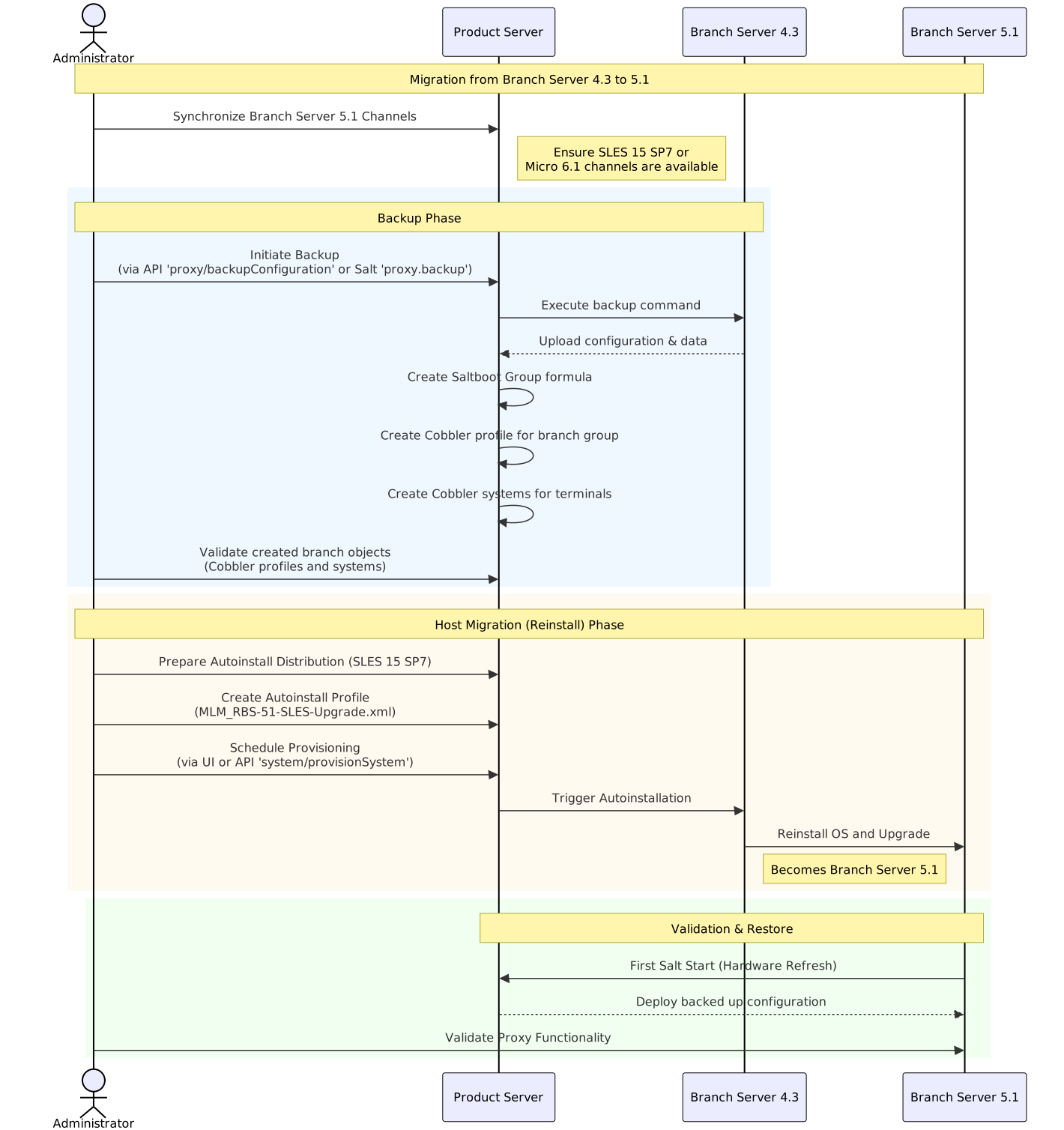
2. Synchronize SUSE Multi-Linux Manager Retail Branch Server channels
See Uyuni 2026.03 Proxy Deployment how to synchronize product channels for a proxy systems.
Depending on the host operating system:
-
SUSE Linux Micro 6.1usesSUSE Multi-Linux Manager Retail Branch Server Extension 5.1channels -
SUSE Linux Enterprise Server 15 SP7usesSUSE Multi-Linux Manager Retail Branch Server Extension for SLE 5.1channels
3. Backup existing SUSE Multi-Linux Manager Retail Branch Server 4.3
Uyuni for Retail 5.1.2 includes automated backup-migration procedure for both kinds of SUSE Multi-Linux Manager Proxy variants. This procedure collects all required data and uploads them to the Uyuni Server. For SUSE Multi-Linux Manager Retail Branch Server this tool also creates and migrates Saltboot related entities.
|
Squid cache data and POS images are not backed up. Due to change in functionality these data are not migrated and instead redownloaded from the server. See retail-deploy-terminals.adoc#_synchronize_images_to_the_branch_server how to warm up the cache. |
There are multiple ways to initiate SUSE Multi-Linux Manager Retail Branch Server 4.3 migration:
-
API call
Replace
$proxyidby a server id of the branch proxy, or multiple server ids separated by a comma.mgrctl api login mgrctl api post proxy/backupConfiguration '{"sids":[$proxyid]}' -
Salt call
Replace
$proxyin command below by branch proxy minion id or-L proxyminionid1,proxyminionid2,…when addressing multiple branch proxies.salt $proxy proxy.backup
|
It is recommended to do a manual backup of the proxy as well, particularly if there are custom modifications present. |
|
SUSE Multi-Linux Manager Retail Branch Server can still be used after backup step as before, however because some formulas were disabled by the backup/migration step, next highstate or image-sync state application will not work properly. Migrate the server host as soon as possible after backup step is performed. |
4. Validate branch objects were created for migrated branches
Backup/migration step will create new Saltboot objects:
-
Saltboot Groupformula with settings from the original formulas is assigned to the branch group. -
New cobbler profile is created for the branch group:
# mgrctl exec -- cobbler profile report --name $branchid:S:$orgid:$orgname
-
New cobbler systems are created for all assigned terminals:
# mgrctl exec -- cobbler system find --kernel-options "MINION_ID_PREFIX=$branchid"
5. Migrate SUSE Multi-Linux Manager Retail Branch Server host
Create and use AutoYAST profiles to migrate or reinstall the proxy host.
5.1. Prepare autoinstallation distribution based on SUSE Linux Enterprise Server 15 SP7
-
Download or obtain SUSE Linux Enterprise Server 15 SP7 installation ISO to the server host
-
Use
mgradm distribution copy $path_to_the_isoto copy installation files to the container -
Register the autoinstallation distribution, see Autoinstallable Distributions.
5.2. Prepare autoinstallation profile
For more information, see Autoinstallation Profiles.
-
Create an autoinstallation profile based previously created distribution. As a profile use profile provided at https://github.com/SUSE/manager-build-profiles/blob/master/AutoYaST/SUSE-Multi-Linux-Manager/SUSE%20Multi-Linux%20Manager%20Proxy/MLM_RBS-51-SLES-Upgrade.xml
-
Once profile is created, switch to
Variablestab and fill in required variables:org=organization_id distrotree=autoinstallation_distribution_label_from_previous_step channel_prefix=clm_channel_prefix or do not add this variable registration_key=activation_key_for_post_upgrade
-
In tab
Autoinstallation Fileyou can see complete rendered profile for additional inspection
5.3. Provision autoinstallation of the proxy
Schedule an autoinstallation on the old SUSE Multi-Linux Manager Branch Server 4.3 using the profile created in previous step.
-
Use Web UI interface
Provisioningtab at theSystemview of migrating branch-
During provisioning, the Salt key must be accepted manually. This is required to initiate the connection to the minion after reinstallation.
-
If the provisioning web interface hangs, it is better to check manually with
podmanwhether the proxy is up and running on the migrated host.
-
-
Or use API call
system/provisionSystemto schedule the migration. For example execute following snippet from the Uyuni host:mgrctl api login mgrctl api post system/provisionSystem '{"sid":$proxyid,"profileName":"$profileName"}'
6. Validate proxy functionality
After migration is finished and salt is started first time, backed up proxy configuration is automatically deployed during Hardware Refresh step.
After finishing all onboarding steps, validate required proxy functionality. When validating the proxy, it is recommended to verify that minions can be contacted.